
In this article, we'll explain how to use relative dates to stagger the release of training for your new hires - or any scenario where you have a lot of content to share, and you don't want to overwhelm learners with having lots of Courses to do all at once.
New starter training is often assigned to a single Group, which can mean that new hires receive a large number of Courses all at once. This can be overwhelming for learners when first onboarding - a problem that can potentially be repeated for learning that repeats in subsequent years.
By using relative dates in Group rules, you can stagger training assignments over time and reduce learner overload while ensuring key training is delivered at the right time. For example, learners receive new Course assignments in Week 1, Week 2, and so on.
We'll cover:
- Steps to set up relative dates to stagger the release of new starter training
- Two ways to move learners to the next Group ahead of time
Note: We recommend that you do not assign learning to the 'All Users' Group, as you cannot control its membership. The 'All Users' Group will always contain all your enabled Users.
Steps to set up relative dates to stagger the release of new starter training
For this example, we have set up 3 groups, named as follows:
- Onboarding, week one
- Onboarding, week two
- Onboarding, week three
Each Group has a number of Courses assigned. The highest priority Courses are in the ‘Week One’ Group. Follow the steps below to create Rules that add Users to each Group, based on their start date.
- Create your new starter Groups as defined above, (or as you require)
- Browse to the ‘Onboarding, week one’ Group
- Select Rules from the Group Administration menu
- Select New to add a new Rule:
- Enter a unique Code and Title for the rule
- Select the checkbox Rule is enabled, (if the rule is to be active immediately)
- Select the checkbox Remove all members…. to ensure that Users are removed from the Group if they no longer match the conditions of the rule
- In ‘Data field’, select User Start date
- In Operator, select Occurs after x days ago:
- In the Value field, enter '0'. A Rules example will be displayed, to help you check you have set the rule up as required.
- Select Add
- Select Submit to Save
Now repeat the steps for the Onboarding, week two Group. Set the Group Rule as follows:
Now repeat the steps for the Onboarding, week two Group. Set the Group Rule as follows:
Two ways to move learners to the next Group ahead of time
The above setup will move learners to the second and third Groups based on their start date. However, it may be desirable for learners to be moved to the second and third Groups ahead of time. We've outlined two options below
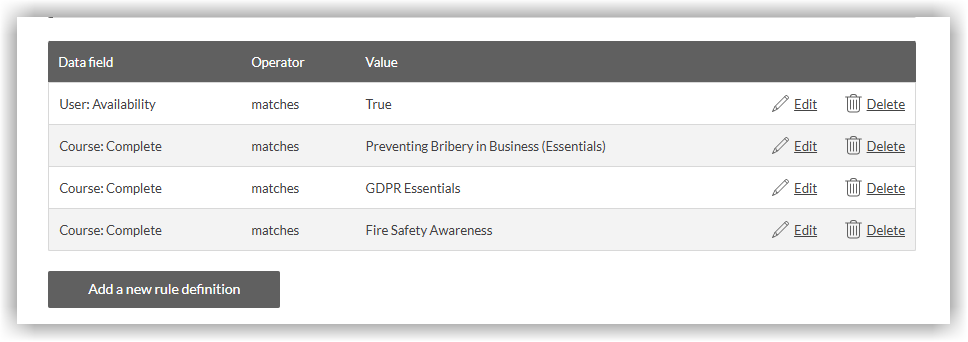
Add a second Group Rule based on Course completion to the 'Week Two/Week Three' Groups.
Learners would then move to the next Group when either their start date was 7 days in the past or they had completed all the learning in the first Group. The second Rule might look like this (based on completion of the 3 Courses being assigned to the Week One Group):
Add a second Group Rule based on (Lesson) completion of a Competency check
In its simplest form, a Competency Check is a checkbox and can, therefore, be used by managers to 'sign off' completion of week one learning and move the team member to the next Group ahead of time.
The second Group Rule might look like this:
View Using "OR" conditions in a Group rule for more information about adding multiple rules to a Group. If you're new to Group Rules, view Good practice, tips, and examples for working with Group rules.
For a deep dive into automated learning, view Automate learning assignment in The Academy.
Ask the Community🤝
Want to connect with peers and hear how they work with Kallidus? Our customer Community is a great place to get quick, relatable advice - so jump in, ask your question, and learn from the wider customer Community.
Get deeper learning in The Academy🎓
The Academy provides structured learning paths you can follow at your own pace, along with live events where you can connect with the Kallidus team and fellow learners. If you're new to Learn LMS Get started: Learn is the place to start.
Don't have your account yet? Contact the Customer Support Team to activate your free account.