
In this article, we'll show how to set a Development activity for a team member. Development activities are a great way to focus a team member on personal goals that may not be directly linked to role objectives.
We'll cover:
- Steps to create a Development activity for a team member
- Linking the Development activity to Skills
- Linking the Development activity to Courses in Learn
- Linking the Development activity to an objective
- Using AI-Recommended Development Activities for Skills
The video below shows the steps for a team member to create a Development Activity for themselves, and for a manager to create one for a team member:
A few things to know about Development activities:
- Managers can create Development activities for their direct reports only
- Team members can also create Development activities for themselves
- Managers and team members can add comments and attach evidence to a Development activity
- Managers and team members can move the progress slider
- A summary of Development activities can be added to a review form
Each time a change is made to a Development activity, the other person can be sent a notification to let them know.
Steps to create a development activity for a team member
- Select the My Team tab. All direct reports are listed:
- Select Check Development activities for a team member:
- Select New activity
-
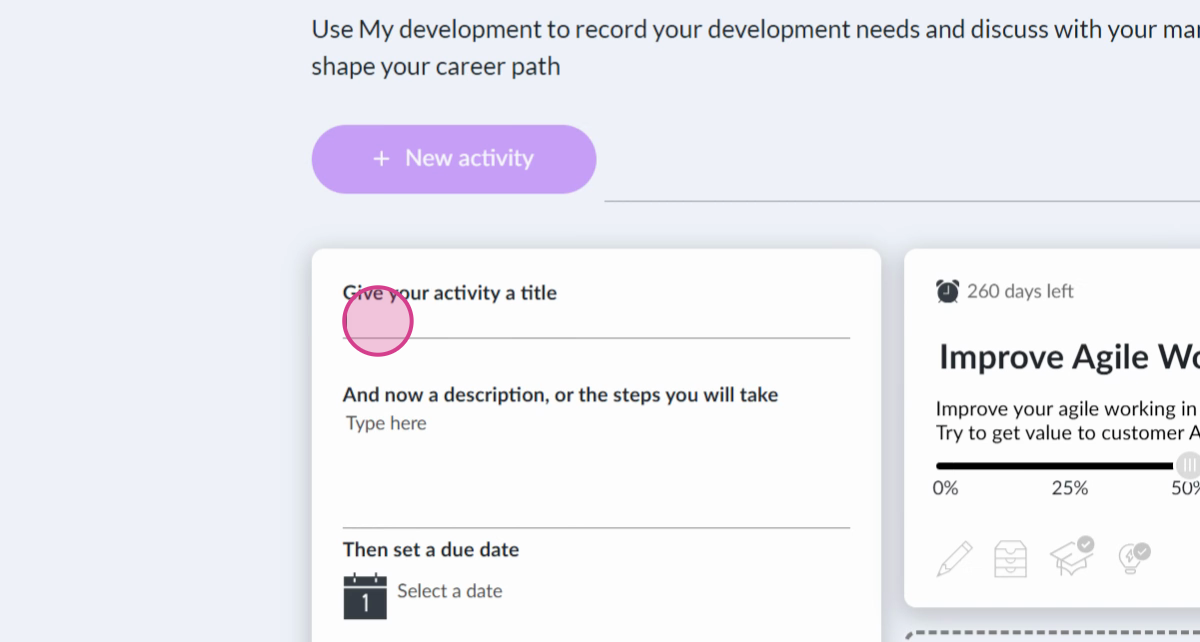
Enter a title for your activity:
-
Provide a detailed description of your activity:
Note that an Ai assistant is available to help with this. It’s designed to support anyone who needs help getting started, wants fresh ideas, or would like to refine and strengthen what they’ve already written. View the video at the top of this article to see the assistant in action. The Ai assistant can be switched on in global settings
-
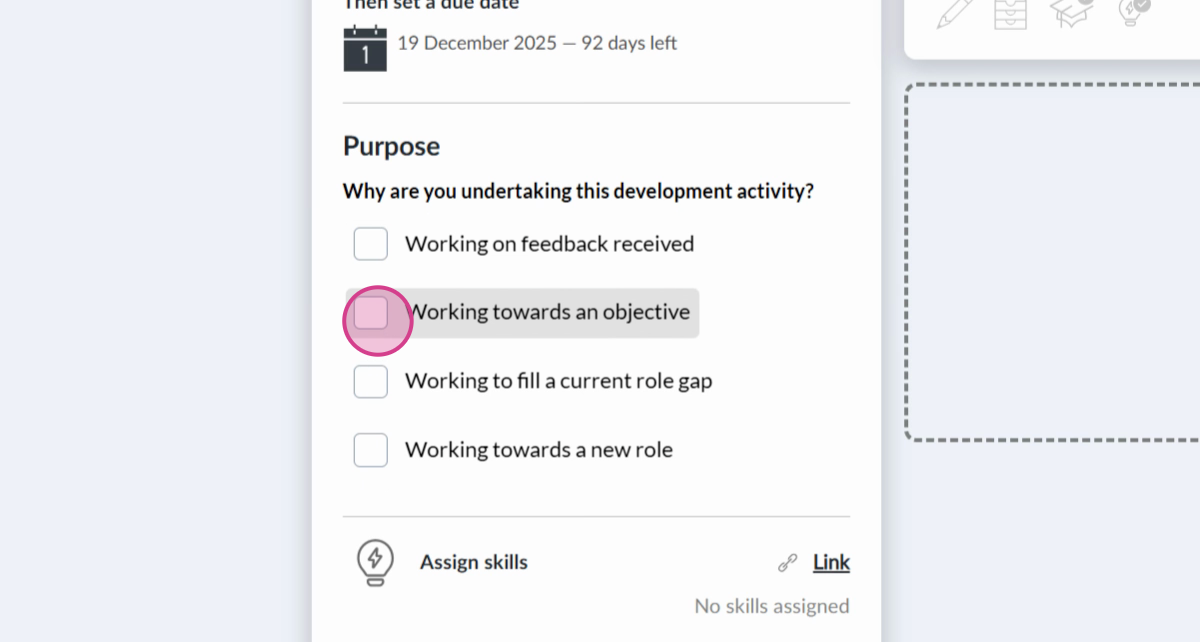
Select a due date for your activity:
-
Indicate why you're undertaking this development activity:
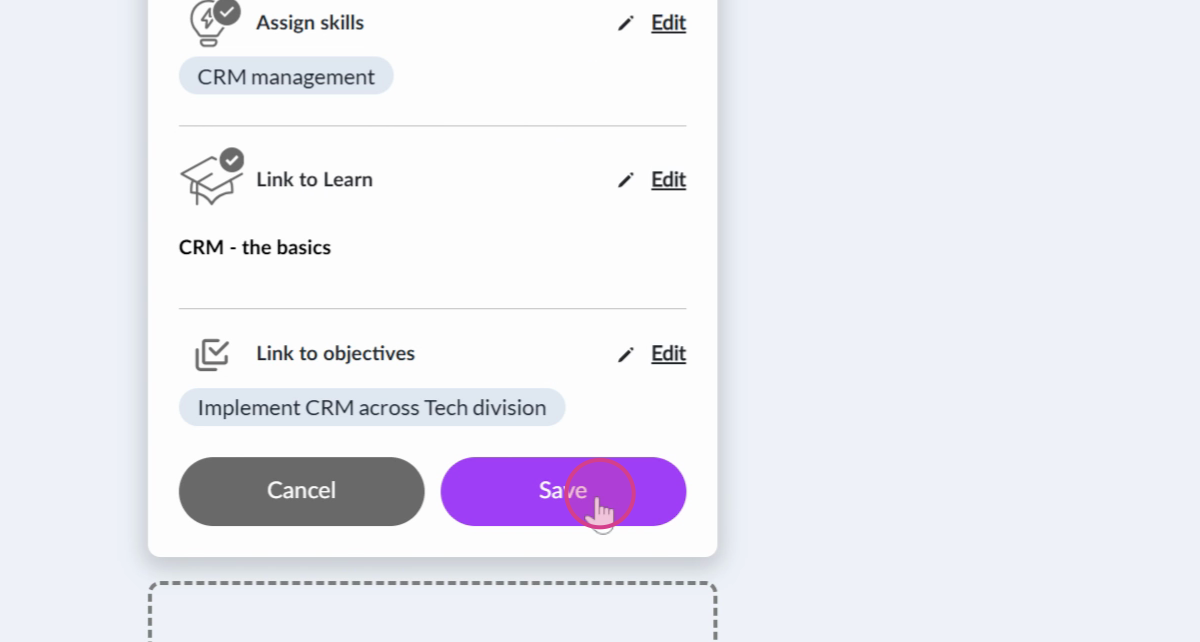
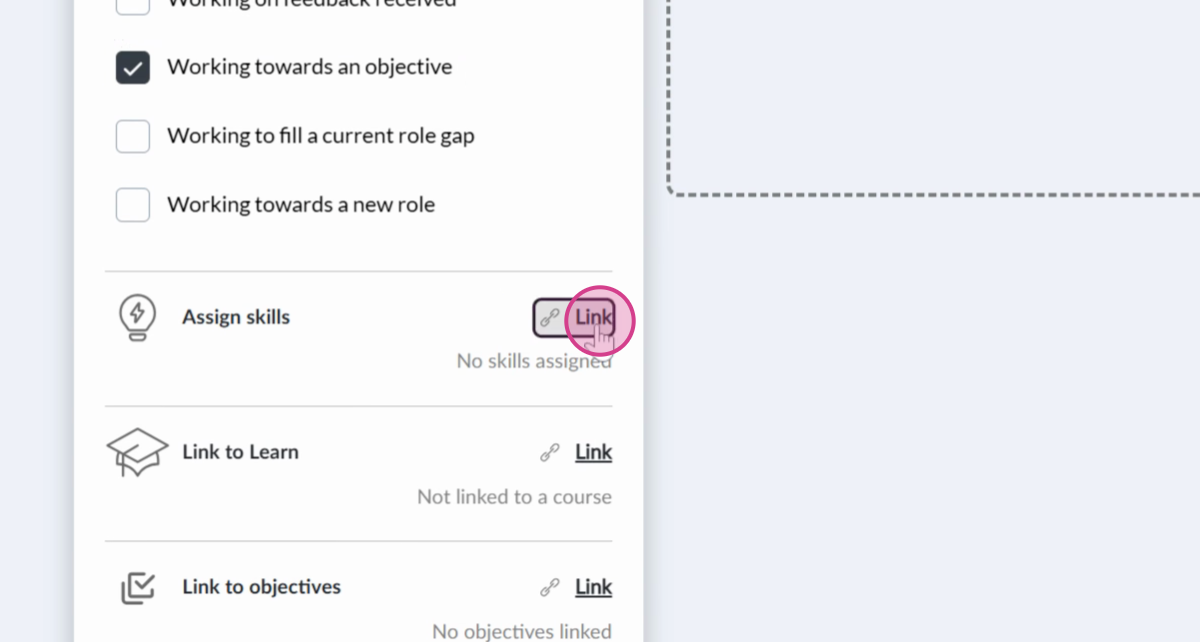
- To assign Skills, select Link alongside Skills (If your organisation uses Skills). See below for steps
- To link Courses in Learn, select Link alongside Link to learning. See below for steps
- To link to an objective, select Link alongside Link to an objective. See below for steps
- Select Save to create the activity:
Linking the Development Activity to Skills
Adding Skills against Development activities can focus on Skill attainment, help the manager support their direct report, and build data for reporting purposes. For more information on Skills, see the Skills section of the Knowledgebase.
Don't see this option? A Perform administrator needs to switch it on in settings. View Optional notifications, features, and settings.
-
Select Link alongside Skills (If your organisation uses Skills):
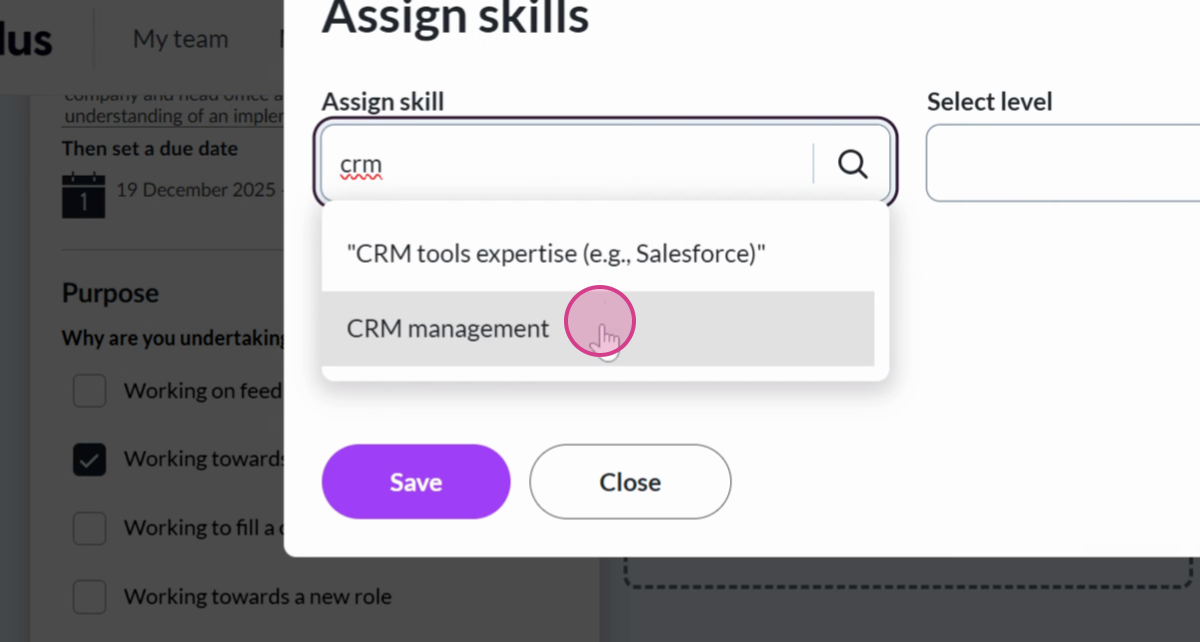
- Search for one or more Skills to assign to the Development activity:
-
Select the level of the skill:
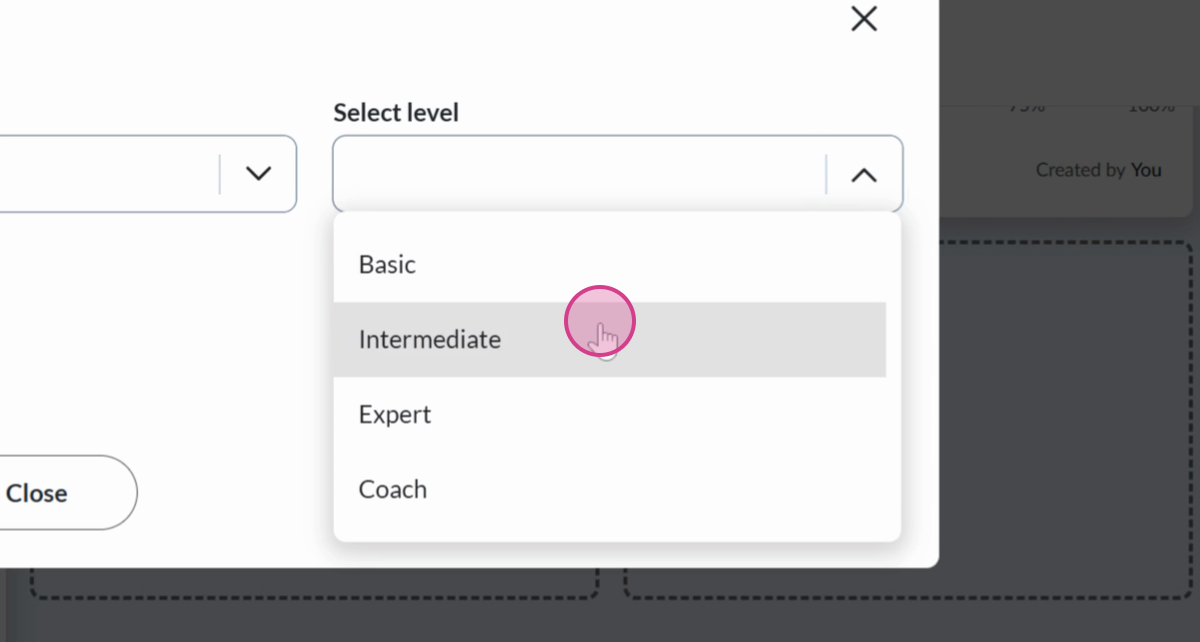 To edit the Skill level, select Edit - either when creating the development activity or at a later time
 -
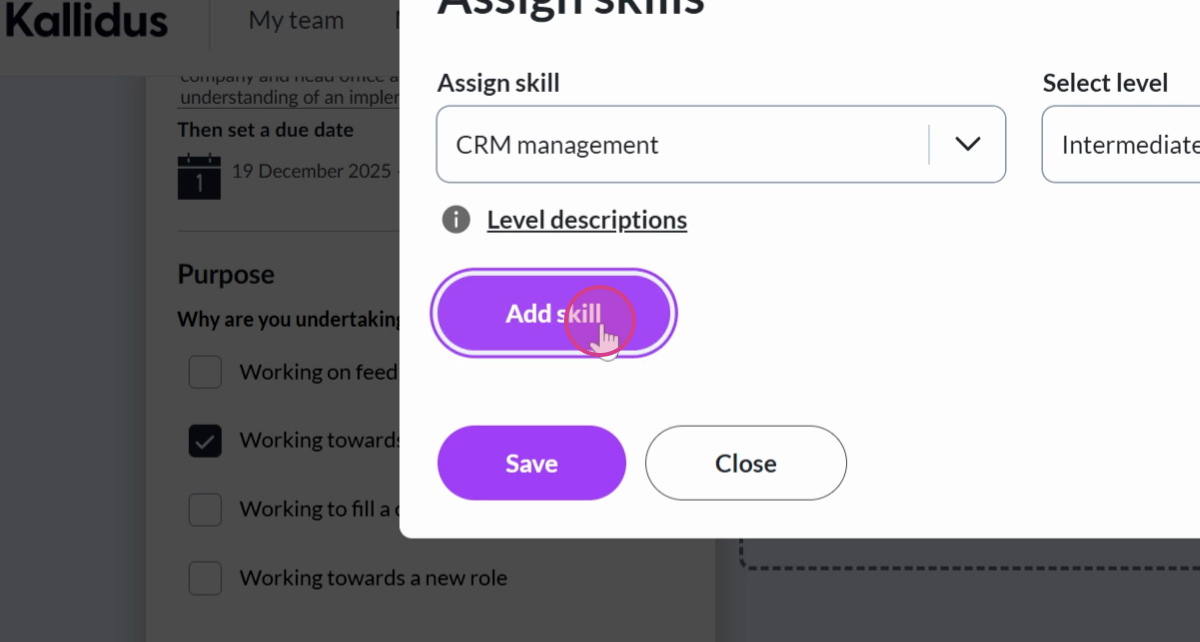
Select Add skill to assign the skill to your activity:
Linking the Development activity to a Course in Learn
-
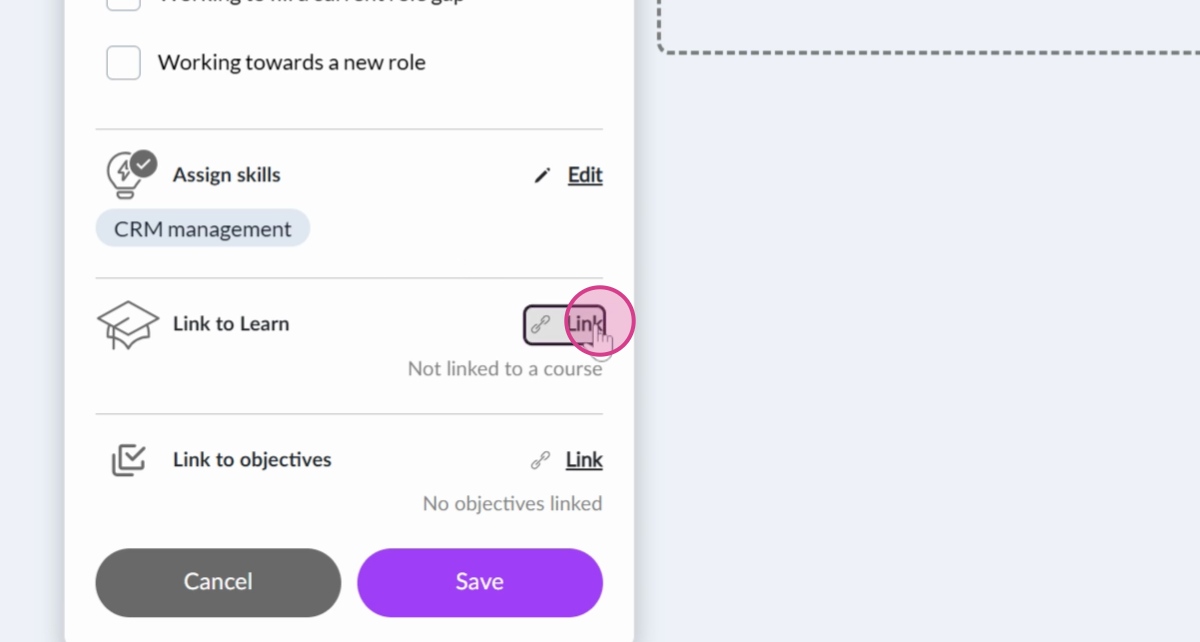
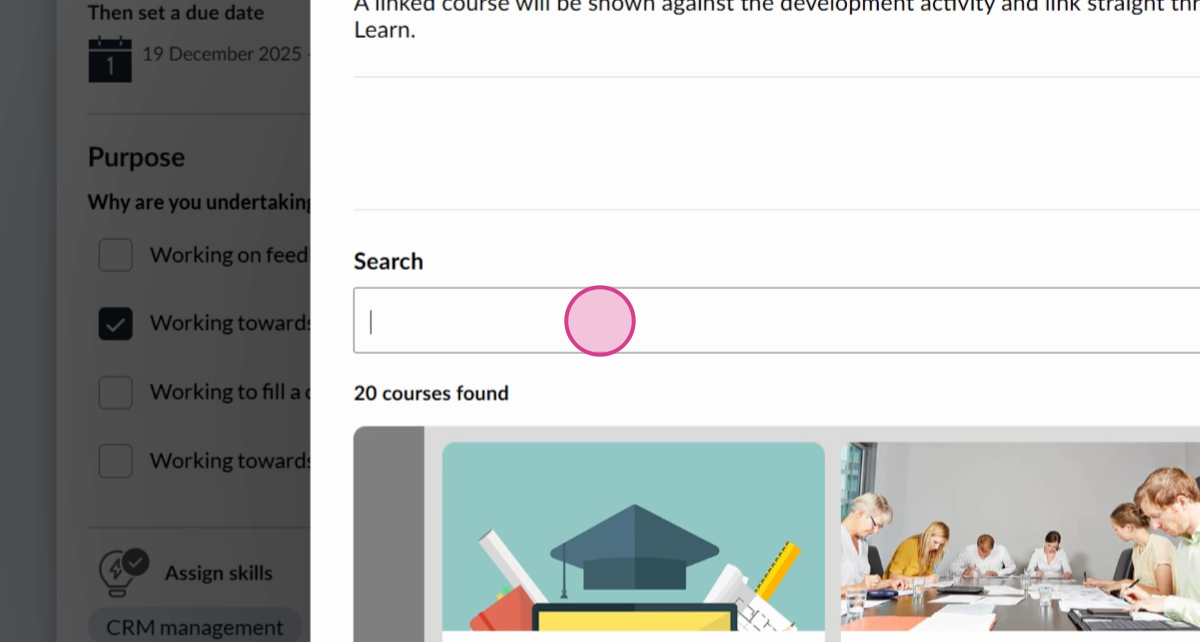
To link to Courses in Learn, select Link alongside Link to learning:
-
Use the Search bar to find an appropriate course (or courses):
-
Select Link:
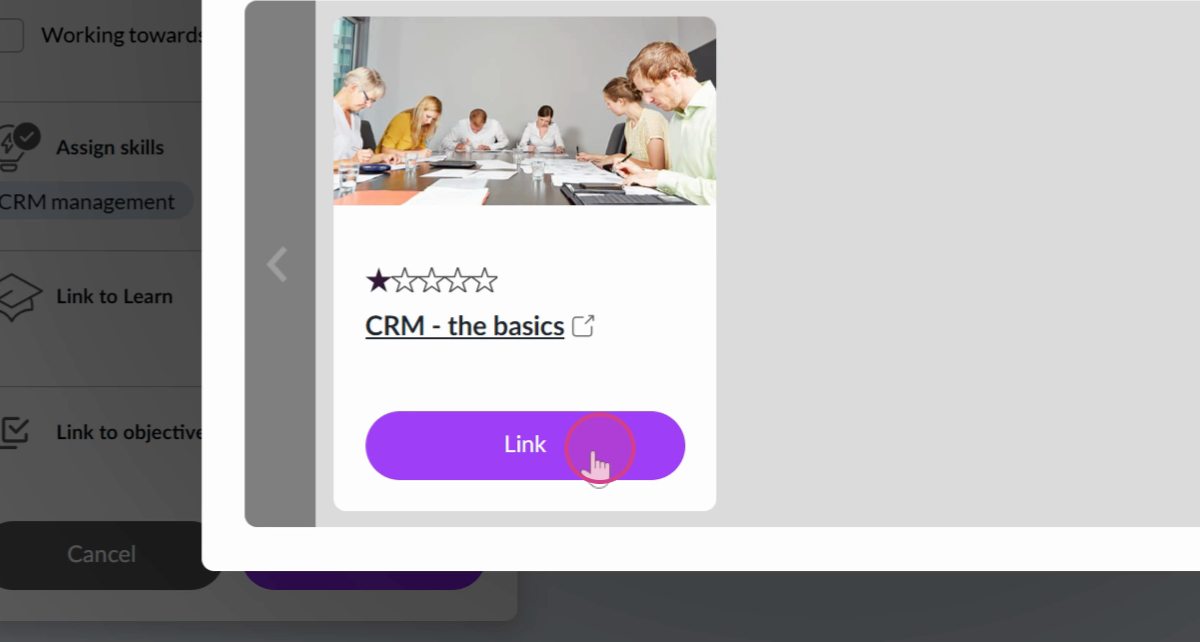
- Select Close to finish
Linking the Development activity to an objective
-
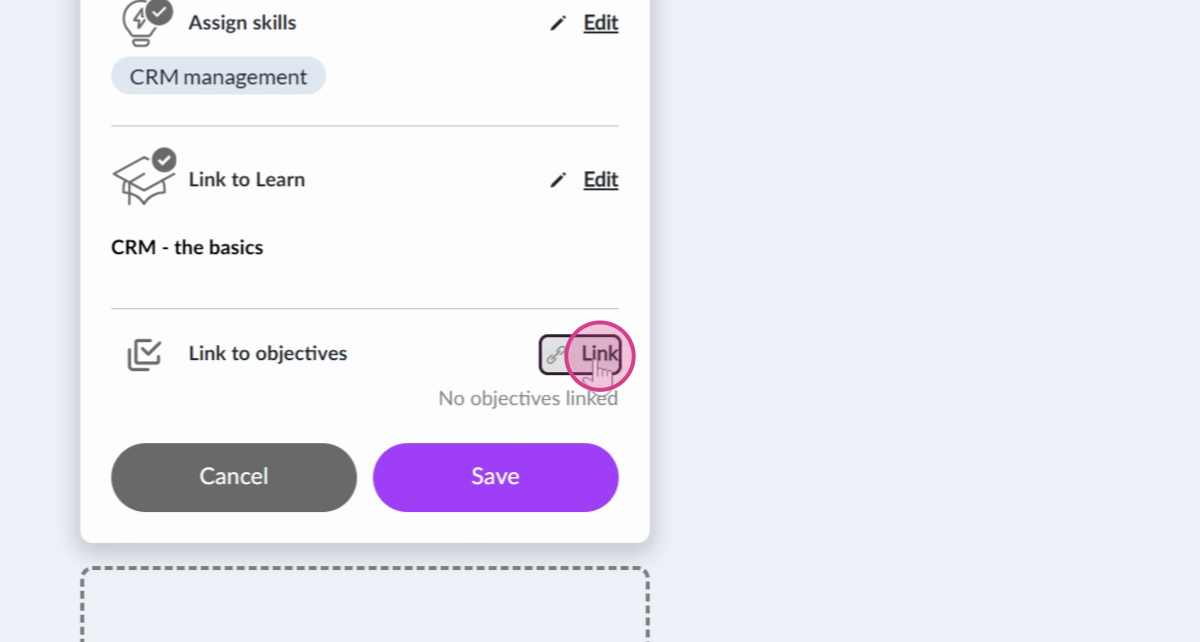
To link to an objective, select Link alongside Link to an objective:
-
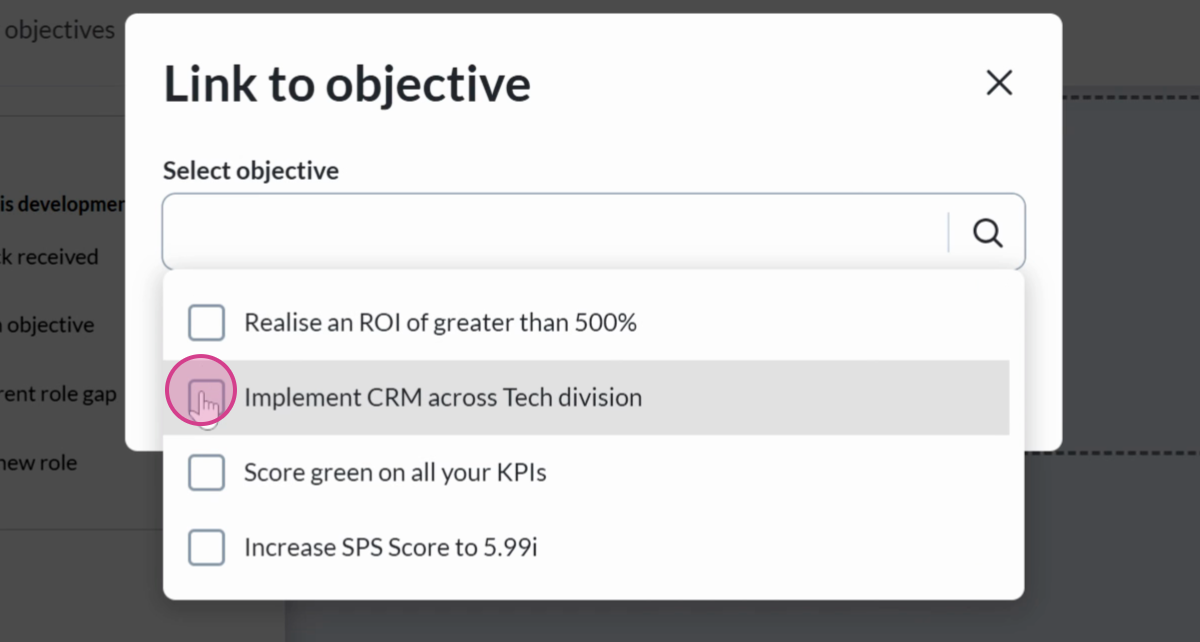
Select one or more of your objectives to link:
The Development activity is now created. You can return at any time to add comments and evidence of completing the activity.
Using AI-Recommended Development Activities for Skills
Users with a skills profile will have development activities suggested to them based on their biggest skills gap.
This focused suggestion encourages people to raise their biggest skills gaps first - the skills with the biggest difference in skill level between where they are and their target level for that skill.
Don't see this option? A Perform administrator needs to switch it on in settings. View Optional settings in Perform.
Ask the Community🤝
Want to connect with peers and hear how they are using Development Activities in their organisation? Our customer Community is a great place to get quick, relatable advice - so jump in, ask your question, and learn from the wider customer Community.
Get deeper learning in The Academy🎓
The Academy provides structured learning paths you can follow at your own pace, along with live events where you can connect with the Kallidus team and fellow learners. If you're ready to dive deeper into Development Activities, view Development Activities in The Academy.
Don't have your account yet? Contact the Customer Support Team to activate your free account.