
In this article, we’ll show you how to use Lesson Sets to set up a Course with two Lessons - a primary Lesson to be completed in year one, and a shorter refresher Lesson to be completed in all subsequent years.
This setup simplifies repeat training, giving administrators flexible control over refresh cycles and helping keep users safe, compliant, and up to date with minimal effort.
We'll cover:
- What are Lesson sets?
- How do Lesson sets work?
- Step-by-step guide to set up a Course with initial learning and ongoing refresher
What are Lesson sets?
Lesson sets simplify the process of configuring repeat learning. When Lesson sets are available for a Course, assigned Lessons can be organised into sets, each with its own rules that define the order and frequency in which lessons must be completed.
This enables LMS administrators to create simple refresher cycles, such as requiring a single Lesson to be repeated every year, right through to more complex cycles, including multiple Lesson sets, each with its own rules for availability and repeat, and choice of Lessons to complete the set.
How do Lesson sets work?
When Lesson sets are available for a Course, all assigned Lessons will be organised into a single Lesson set, with the option to add rules about when and how frequently the Lesson set must be completed.
Up to 5 Lesson sets can be added to a Course - each with an unlimited number of Lessons and its own rules for availability and completion.
A few things to know about Lesson sets:
Lesson sets are available for new Courses only
A Lesson cannot appear in multiple Lesson sets
At the end of a sequence of Lesson sets, a learner can be directed to repeat all the Lesson sets
- Lessons already linked to an Accreditation cannot be added to a Lesson Set.
Step-by-step guide to set up a Course with initial learning and ongoing refresher
1. Browse to the Course area of Learn admin:
Select New Course
Select 'Enable Lesson sets to organise lessons and create rules'. Note that this option is available for new Courses only:
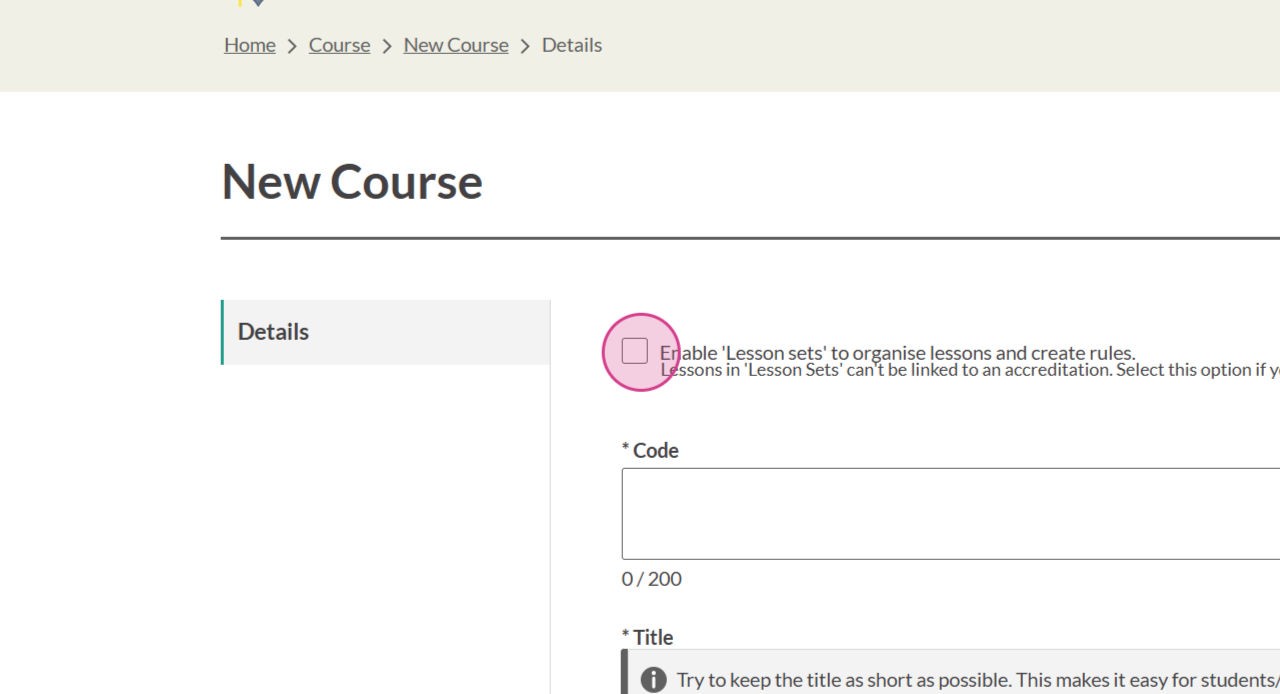
Populate the remaining fields to create the Course. See Create a Course for a step-by-step guide
Select Lesson from the Course Administration menu:

Select Add set:
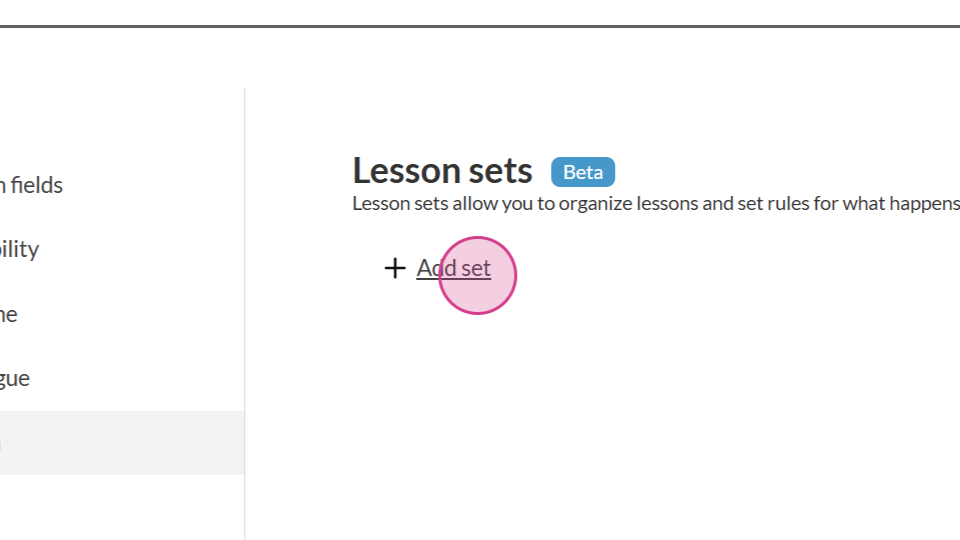
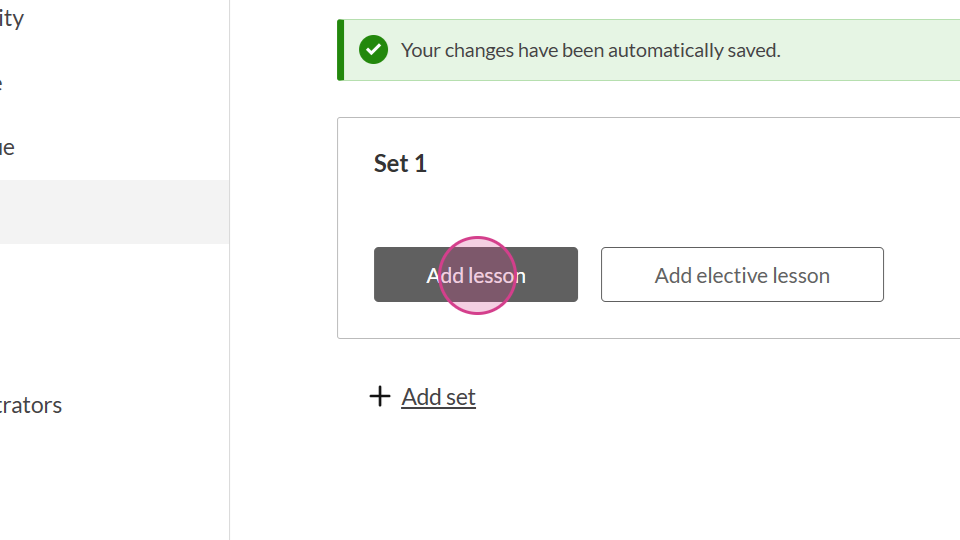
Select Add Lesson:
Browse to select the Lesson to be completed in year one:
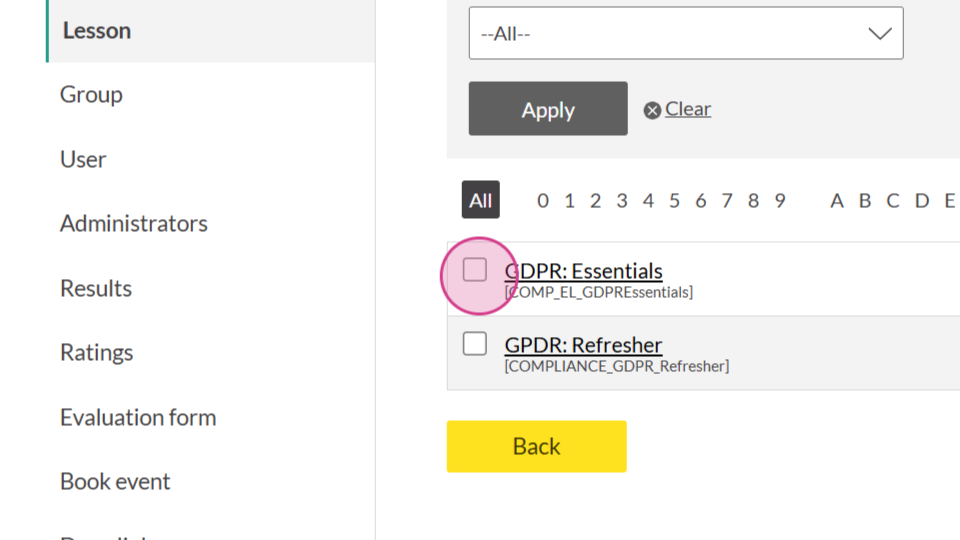
Select Submit. This adds the Lesson to Set 1
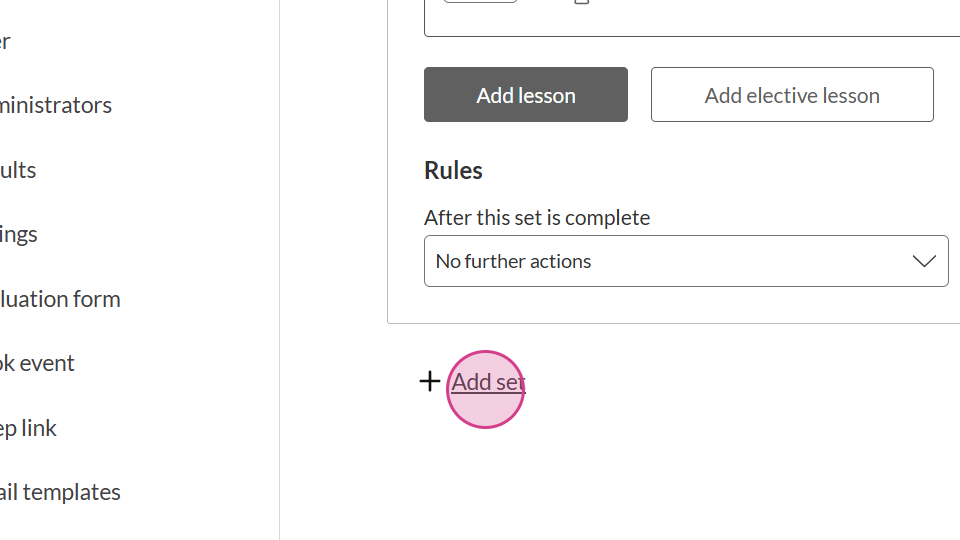
Select Add set to add a second set:
Browse to select the Lesson to be completed in year two (and subsequent years)
The last step is to specify the rules for each set:
Rules for set 1:
| Setting | Option |
| After this set is complete | Go to Next set |
| When should this next set be due? | At a specific time |
| Make next set due in | 1 year |
| Make set available to learners | 30 days before it is due |
Rules for set 2:
| Setting | Option |
| After this set is complete | Repeat this set |
| When should this next set be due? | At a specific time |
| Make next set due in | 1 year |
| Make set available to learners | 30 days before it is due |
| Number of repeats | Indefinitely |
The Lesson set up is complete. View How reminder notifications work for Courses with Lesson sets to see how to set reminder notifications.
Repeat all sets
Note that in the second set, it's possible to set the rule so that learners must return to the first set and complete the learning in the same order, once again.
If this were selected in the above example, it would mean that learners must alternate between full learning and Refresher learning, every other year:
This is a BETA feature - please share your feedback!
Your insights are essential for us to improve the feature discussed in this article. Visit Airfocus to view the roadmap and share feedback. Thank you!