
In this article, we’ll walk you through how to unenable and re-enable a user in Learn and Perform. Once unenabled, a User will no longer have access to the system. The steps outlined below apply only to users managed directly by the Learn admin team, such as contractors, volunteers, or seasonal workers.
Steps to manually enable or unenable a User in Learn and Perform
-
Browse to Manage Users:
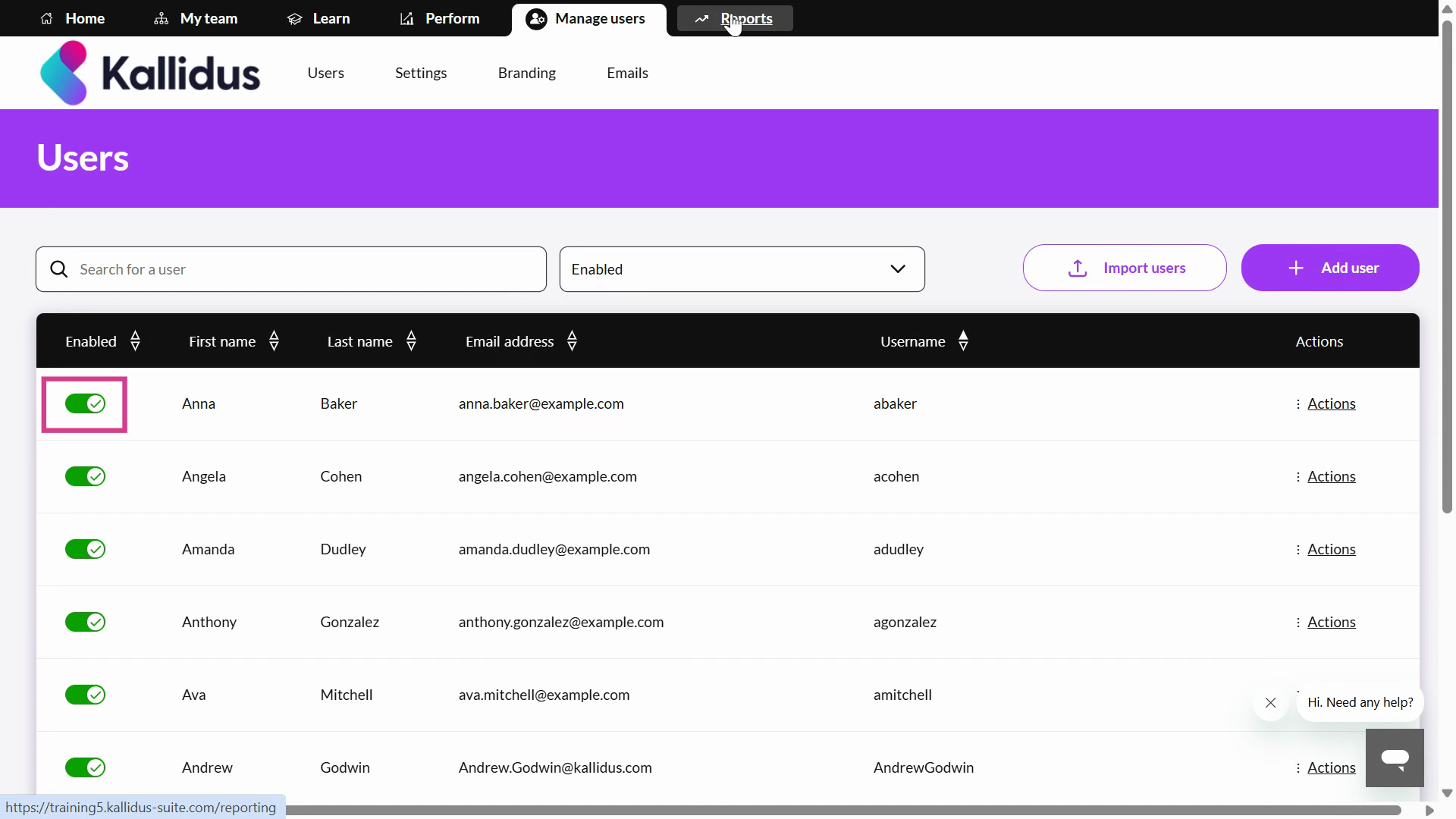
- Use the search to find the User to unenable or unenable. Take care to check that the 'status' drop down has the correct option selected (either non-0enabled or enabled User:
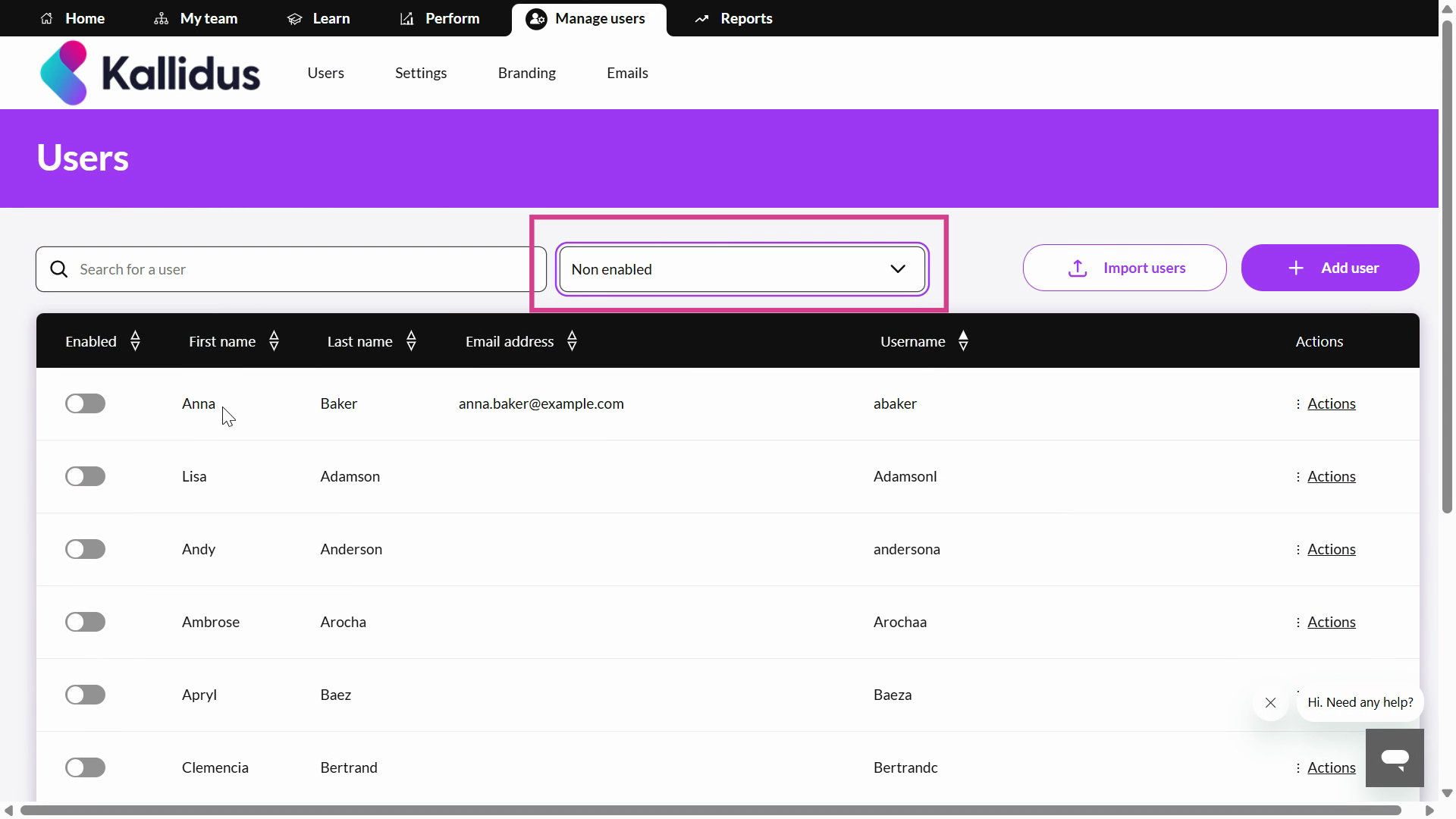
- Select the toggle to enable or unenable the User:
Ask the Community🤝
Want to connect with peers and hear how they work with Kallidus? Our customer Community is a great place to get quick, relatable advice - so jump in, ask your question, and learn from the wider customer Community.
Get deeper learning in The Academy🎓
The Academy provides structured learning paths you can follow at your own pace, along with live events where you can connect with the Kallidus team and fellow learners. If you're new to Learn LMS Get started: Learn is the place to start.
Don't have your account yet? Contact the Customer Support Team to activate your free account.