
When exporting comma separated value (CSV) data, you may sometimes notice that some data is converted into scientific or exponential numbers or that international accented characters (e.g. Unicode UTF-8 encoding) are converted to other incorrect characters.
For example, an exported a phone number may appear as 7.04E+09 or something similar.
A similar issue occurs when raw data in your system contains leading zeros, with these being removed when you open the CSV file.
For example, a cost centre in the format 00012345 will end up being displayed as 12345.
Opening your CSV file in a Spreadsheet
Unfortunately, if you open a CSV file using a spreadsheet program, such as Excel, numerical data may be converted by the program as above. If Excel does not recognise that a CSV includes unicode characters, then these characters will not be displayed correctly. Furthermore. if you then save the CSV file again, the data will be permanently converted to the displayed values, rather than what you actually want.
For clarity, the reason these problems occur is not due to the way Kallidus exports your data. This is actually a function of Excel and other spreadsheet programs and how they open a CSV file and display the data.
The good news is that provided you haven't saved the CSV file after Excel already converted the data, the data will be actually in the correct format in the original CSV file (you can see this if you open the CSV file in Notepad for example).
So, if you need to open the CSV file in a spreadsheet, you need to import the data instead and, if appropriate, indicate the encoding format used (usually Unicode UTF-8). See below for how to do this in Excel.
Importing your CSV file to a Spreadsheet (Excel 2013)
- Open a blank workbook
- In the Data menu, select From Text
- Select the CSV file and click Import
- Indicate that the file is Unicode UTF-8 encoded
- Click Next and check Comma as the only delimiter
- Click Next again and in turn, select each column with a phone number or with data with preceeding zeros and change the Column data format to Text
- Click Finish and say OK to putting the data in $A$1 in your new workbook
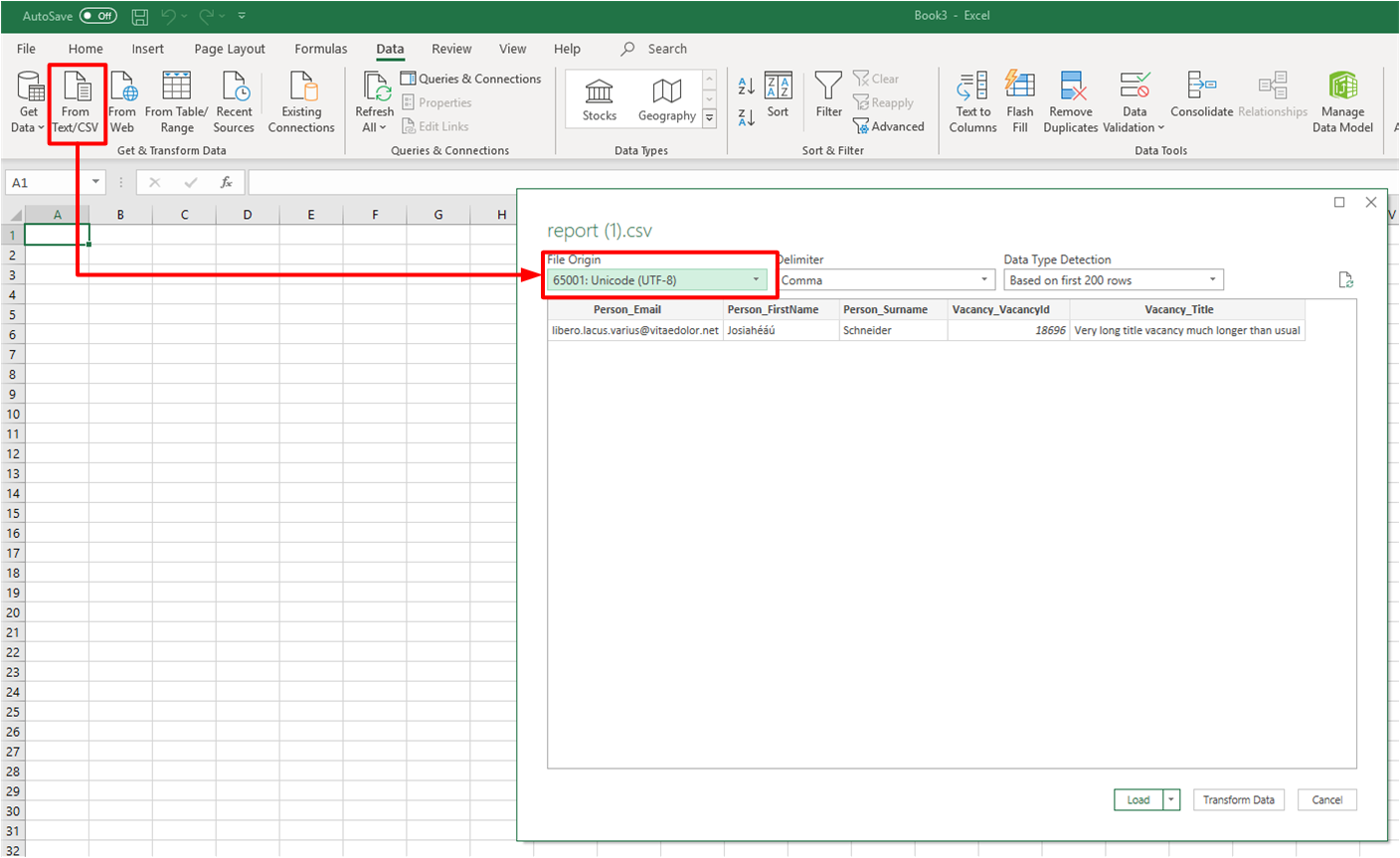
Importing your CSV file to a Spreadsheet (Excel Office 365)
- Open a blank workbook
- In the Data menu, select From Text
- Select the CSV file and click Import
- Indicate that the file is Unicode UTF-8 encoded
- Confirm Comma is selected as the delimiter
- Change column data types if necessary using the Transform Data option, e.g. for each column with a phone number or with data with preceeding zeros, change the Column data format to Text
- Click Load to open the CSV in your new workbook
Other spreadsheet programs should have similar import wizards.